

What is the Instruction Page and How to Use it
A breakdown of the best way to take advantage of the Instruction Page in DoxFlowy Workflow Forms.
What is the instruction page? #
As the name implies, the instruction page is a unique (optional) page that can be used within your DoxFlowy Workflow Forms.
It’s unique because, even when added to the form, it doesn’t appear until certain conditions, which you set, are met.
The Instruction page is accessible via the ‘edit form’ step of the workflow and i under the ‘questions’ tab.
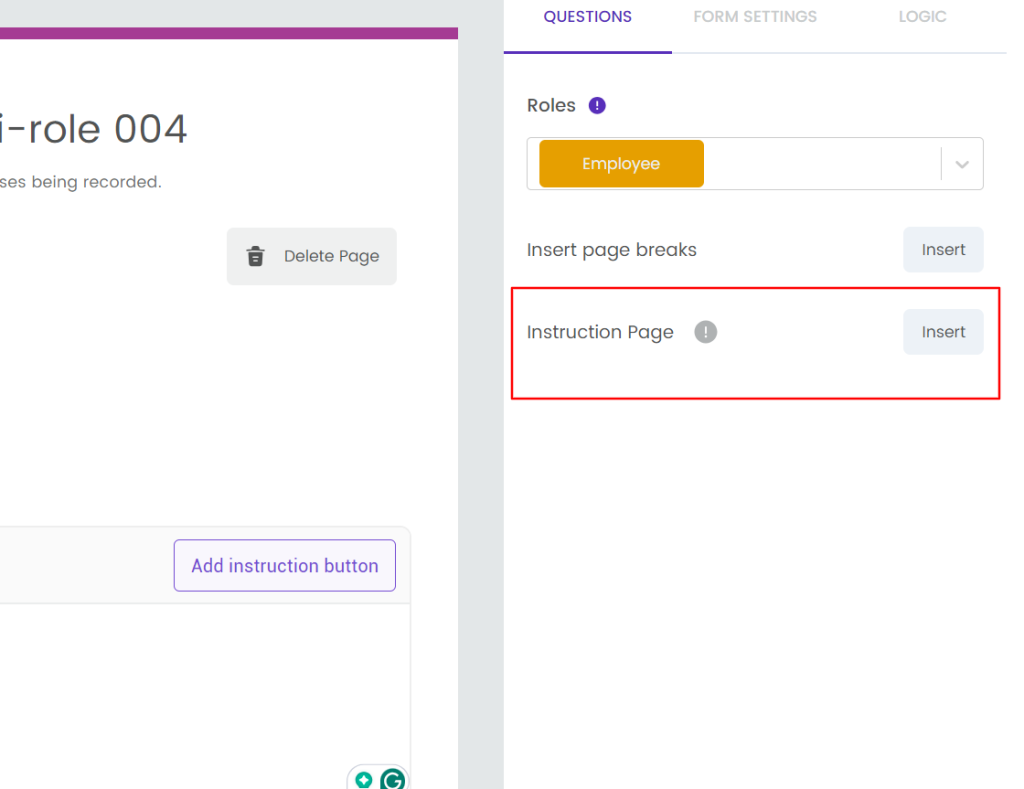
The conditions to control the instruction page are configured by using the conditional logic options in the ‘edit form’ step of the workflow.
How to use the instruction page #
The instruction page can be used in various ways. After it has been added to the form, you can use it to share a message with the form respondent.
It’s often used when the respondent doesn’t meet the criteria to fill out the form or enter an agreement with you.
For example, if someone needs to be 18 years or older to use a certain service, you can have a question in your form that asks for their age. If they’re below 18, you can show them the instruction page, explaining that they’re not a good fit.
You can go further to recommend a different product or invite them for a different outcome.
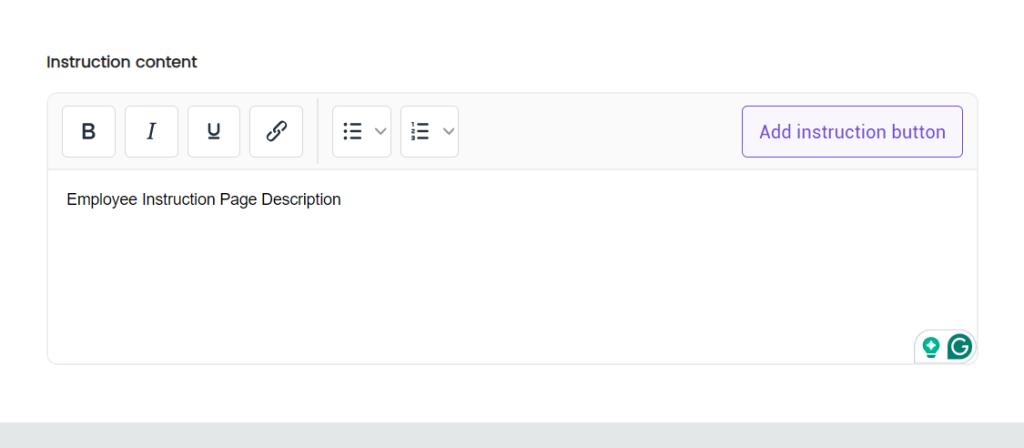
You can add all of the relevant instructions in the space provided on the page.
You also have multiple formatting options to help you deliver your message in the best way possible.
Once you’ve added the ‘instructions’ you can proceed to add a button.
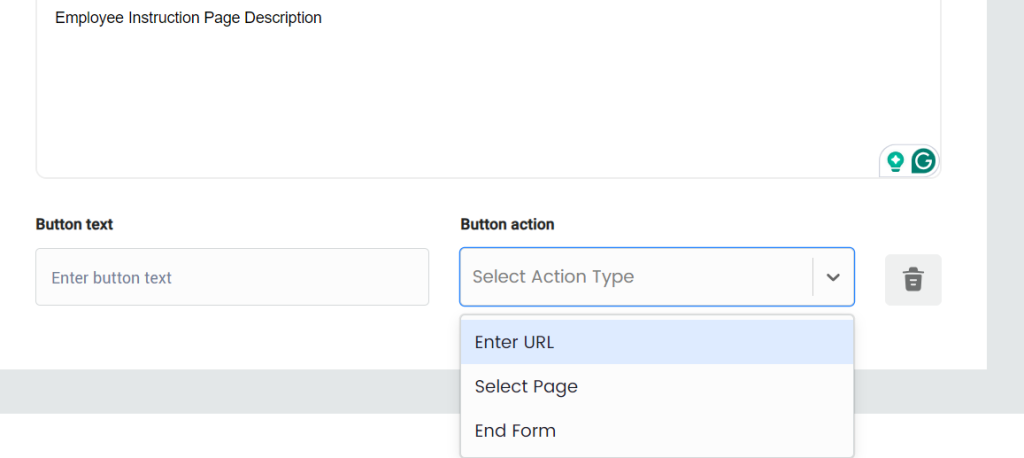
The button can be configured to have 1 of 3 potential actions.
- Redirect to a unique URL
- End the form
- Go to another page of the form
The most common options are to redirect the users to a unique URL or end the form.
You can set the button text and it will inherit the branding options from your form settings.
The instruction page is different from regular pages but when used properly, it can help create a better experience for your users.