

When you’re creating a document in DoxFlowy there’s an infinite scroll effect. That means there are no visible page breaks. If you want to start a paragraph or section on a new line, how do you do that? Where do the natural page breaks fall?
This guide will show you how to figure that out and even how to add page breaks manually so your document formatting meets your expectations.
How to view document page breaks #
Within the DoxFlowy document editor, there’s a formatting and options ribbon at the top of the page. On the right of the ribbon is a drop-down arrow.
Click it.
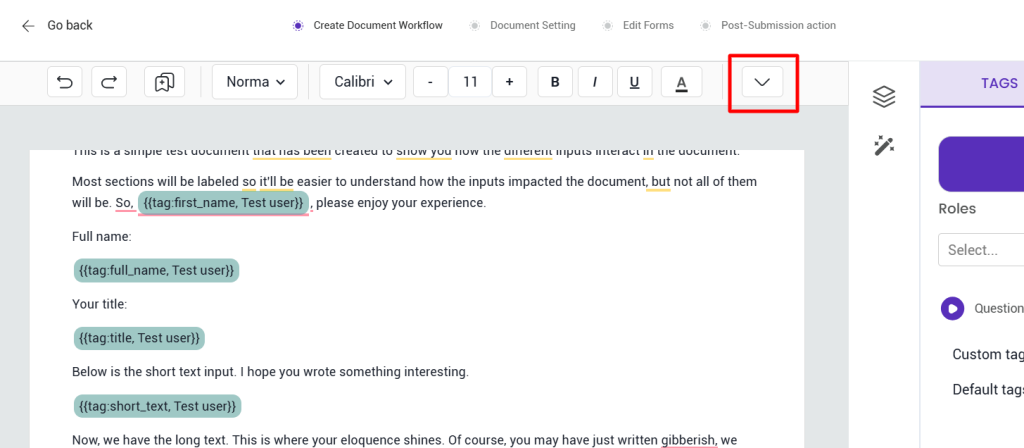
That will open up more options. To the right of the expanded ribbon, you’ll see a print preview option.
Click it.
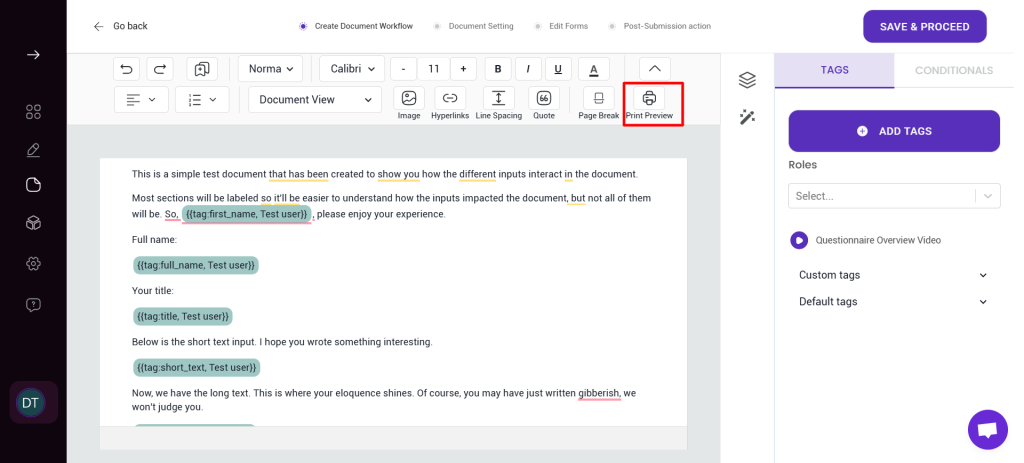
That will give you an estimation of how the final document will look. Of course, there will be changes because of things like conditional logic and text replacement.
How to manually add page breaks #
You can also add page breaks wherever you want.
Navigate back to the additional formatting ribbon, right next to the print preview option, and there’s a page break option.
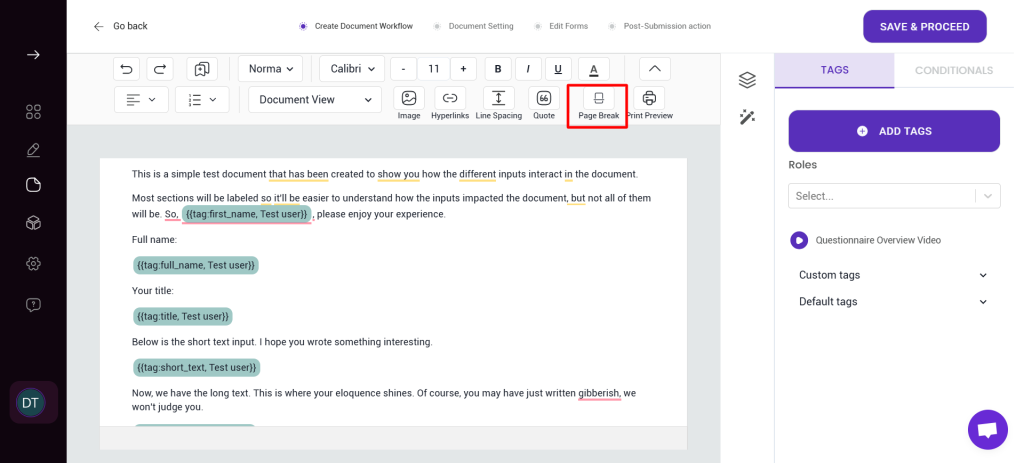
When you click that option, a page break is automatically added to your document at the place your cursor is located.
This is how the manual page break will look:
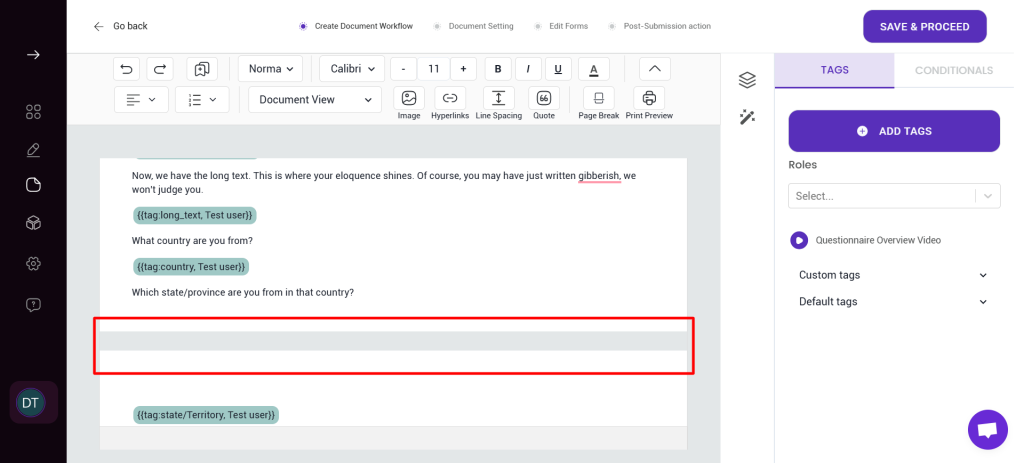
Please note that the page will be a standard A4-sized page. There will be white space on the previous page before the page break, just like if you’re typing in Word or any other word processor.
.
The only difference is that it’s not visible when you’re editing your document within the DoxFlowy Document Editor