

Once you’ve uploaded a document and added the signatories, there are a few steps you need to take to prepare it for signing, such as adding signing fields and mapping them to the corresponding individuals.
This guide will walk you through how to do that step-by-step.
How to prepare your document for signing #
After you’ve uploaded your document and decided how you want to sign (sign alone, allow others to sign, etc.), the next step is to prep your document.
This includes adding the signatory fields and other elements.
What you see should look similar to the image below:
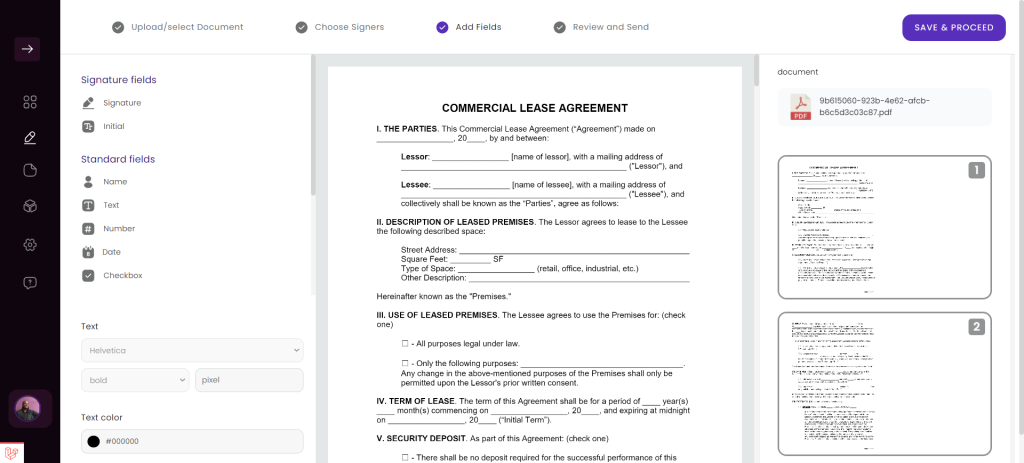
Look at the options on the left of the screen. There are multiple options, such as signature, name, date, etc.
You can drag and drop those fields into the document at the appropriate places and assign them to signatories.
The first thing you want to do is drag and drop the signature field into your document. You can also click it, and it’ll drop into your document around the middle of the screen.
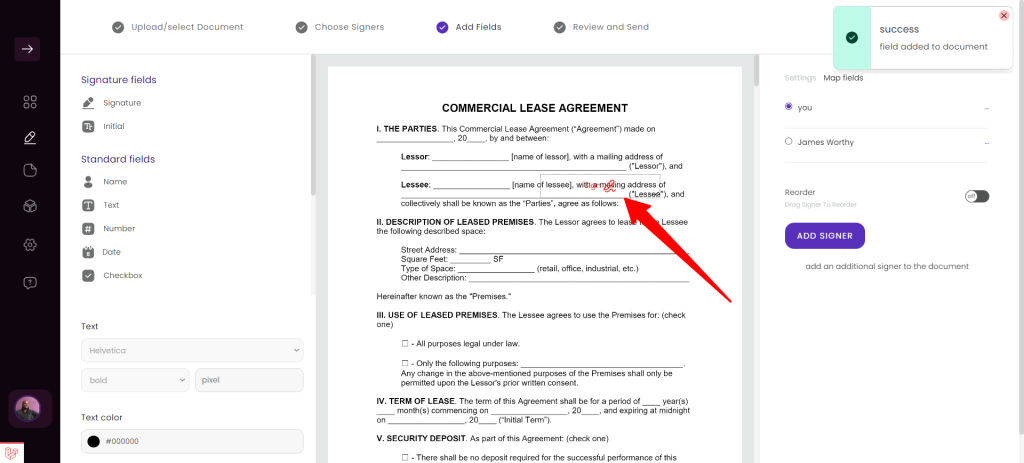
Once the signature field has been added, move it to the exact place in your document that you’ll be using it.
After you’ve put it in the correct position, click it.
You’ll see a name appear above the field.
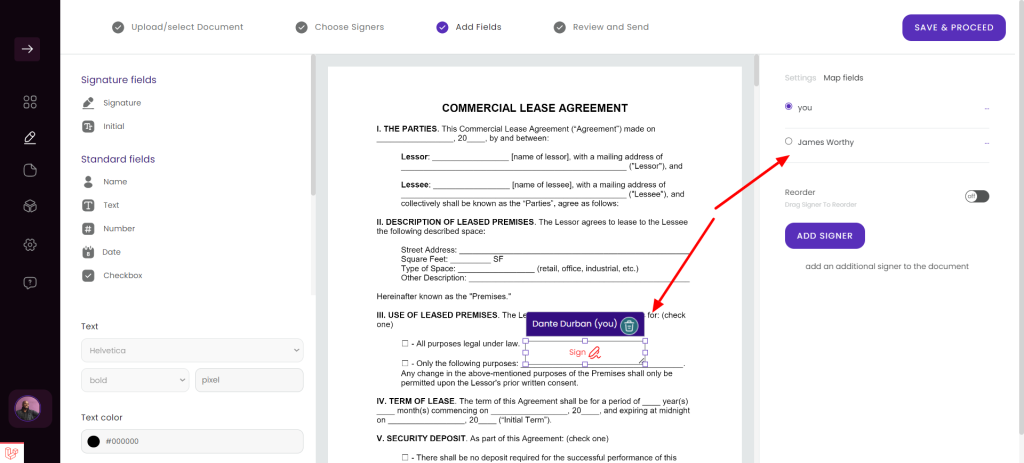
The name indicates who the field is assigned to. You can click the purple area to change who the field is assigned to, or you can click into the right-hand menu, under map fields, to change who the field is assigned to.
By default, the signature field is required.
In the right menu, you’ll see that there is a map fields tab and a settings tab.
Within the settings tab, you can control things like the placeholder text (what the user sees before filling out the field), the helper text (what a user sees if they hover over the field), and the field name (used for mapping fields within integrations).
You can also set the field as required.
Make sure to save the changes you make here by clicking the save button.
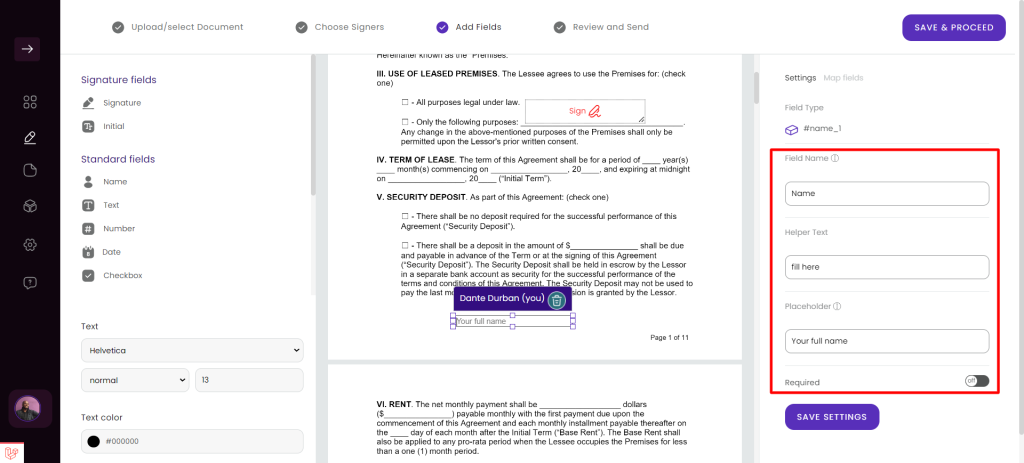
Moving back to the left side of the screen, you can make minor customizations to the fields you’ve added, such as the font, font weight, and color. You can also adjust the font size, but if you change the size of the field, the font size will increase or decrease to conform to the field size.
You can repeat this process for any field you add to the document. When you’re satisfied with your changes, click the save and proceed button at the top right of the page.