

When someone has completed a document automation workflow, the generated documents are stored within DoxFlowy for you to access whenever you need.
This guide will walk you through the process of accessing those documents.
When you log into your account, go to the left hand menu and click on documents.

When the page loads, click on the document automation workflow that contains the completed document that you want to download. It’ll load a new page.

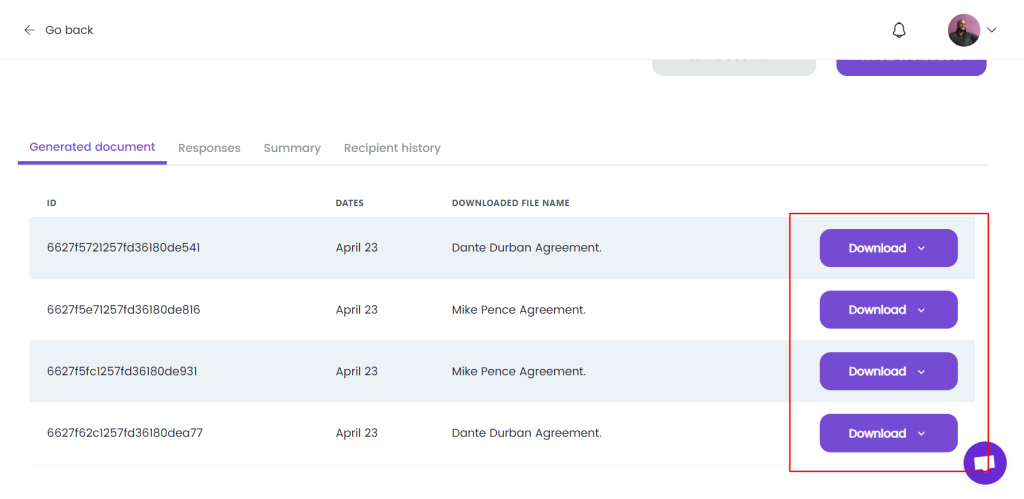
On the new page that loads, by default, you’ll be on the ‘generated document’ tab. You’ll see the name of the document and a purple download button. Depending on the settings you chose when creating your workflow, you’ll be able to download the file as a Word or PDF document.
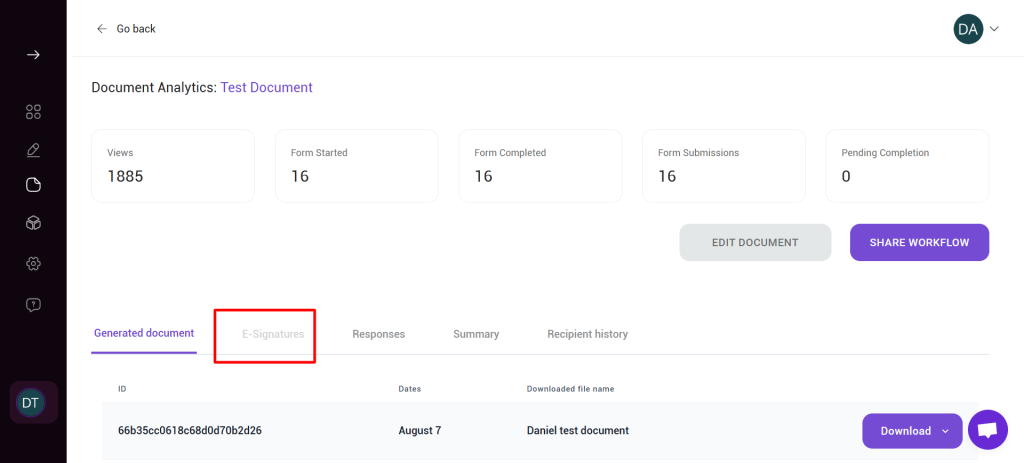
In the next tab, you’ll labeled eSign, you’ll be able to download signed documents along with the associated audit trail.
Please note that the documents under ‘generated documents’ are NOT signed. If you set up a signing step for your workflow automation, you can view and download the signed documents following the instructions above or by going to the sign section of DoxFlowy.