

Signing a document with DoxFlowy is a straightforward process. If everything you need is readily available, it should only take a few minutes.
This guide will walk you through the signing setup process step-by-step.
Initiating a sign request #
Log in to your DoxFlowy account.
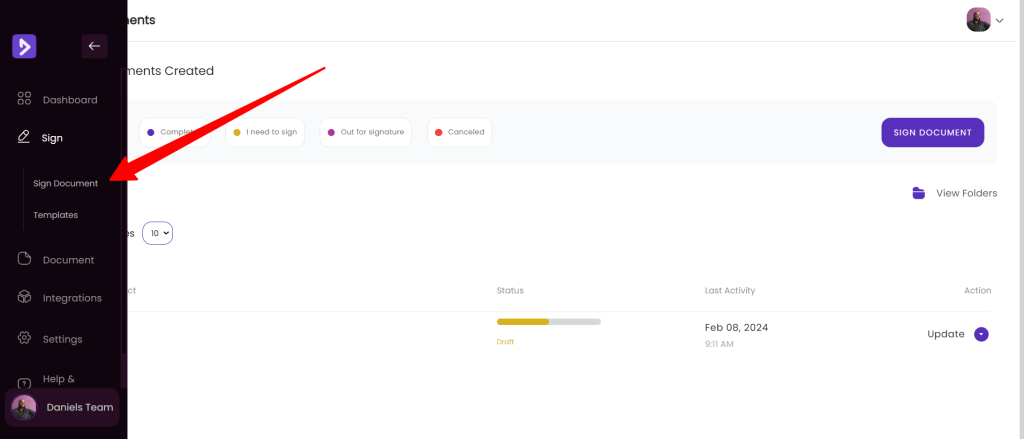
Open the left menu and navigate to the ‘sign document’ option. That will initiate a sign request.
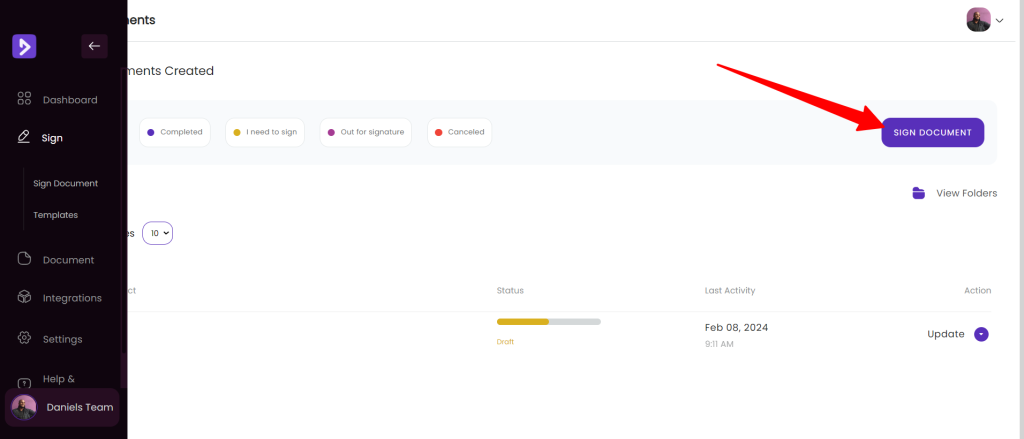
Another option is to click on the sign document button from the sign dashboard.
On the next screen, you’ll be asked to upload the document you want signed. You can import from Google Drive, upload from your device, or drag and drop a file into the space provided.
Once the document has been uploaded, continue to the next step.
Choosing signers #
On the screen that loads, you can sign documents in multiple ways.
- You can sign with others
- Sign alone
- Allow others to sign without you
Select the option that makes the most sense for your situation.
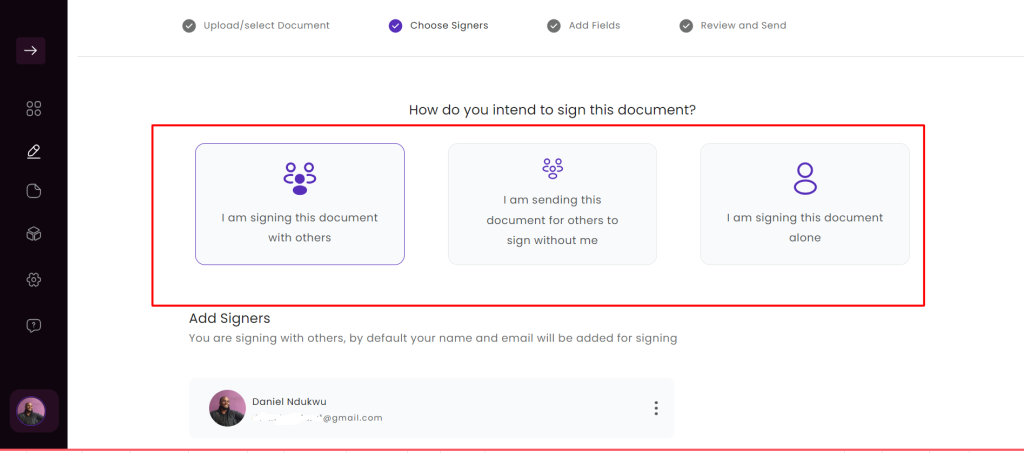
After choosing an option, you can include the other signatories. Depending on the option you choose, you’ll be added as a signatory by default.
You can choose to enforce a strict signing order, which means the next person cannot sign until the person in front of them has signed the document.
You can also add a CC recipient. This person will get a final copy of the signed document, but won’t participate in the signing process.
On the next screen, you’ll be able to add the signing fields in the appropriate places and indicate who is responsible for signing where.
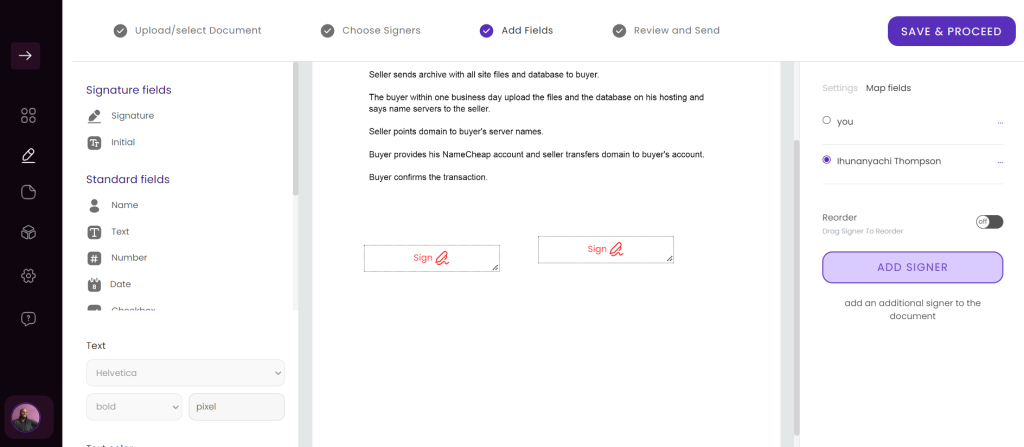
First, add the signature fields.
Then indicate who should sign each field you’ve added. You can learn more about prepping your document for signing here.

Once all fields have been added and mapped to the appropriate signatory, proceed to the next step.
On this page, you can change the name of the document, set reminder emails, include a redirect email, confirm your settings, and perform multiple actions. Once you have selected all of the options, proceed to send the document out for signing.
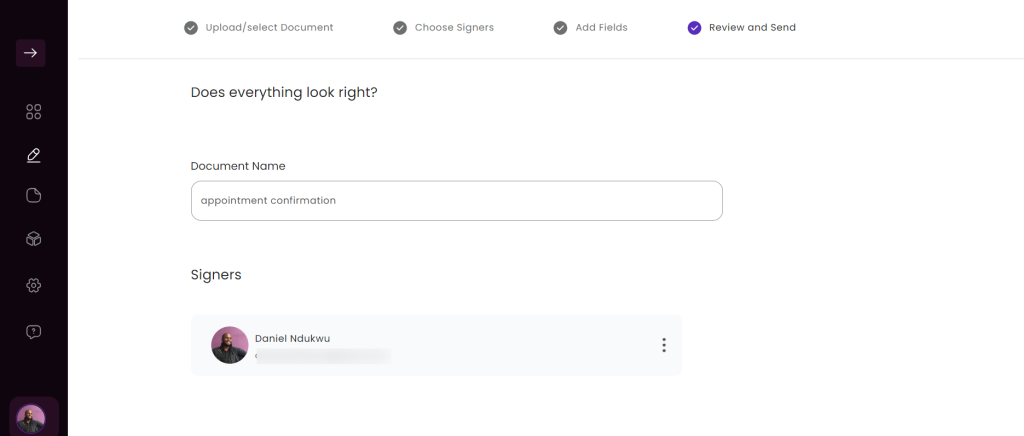
That’s all you need to do to send out a document for signing using DoxFlowy.