

Understand how to embed document questionnaires and the limitations of the feature.
Before we get into the step-by-step process of embedding a document questionnaire on your website, it’s important to note that this feature is limited to single role workflows.
Why?
Because when you have multiple roles, it’s not possible to determine how to pair up respondents of different forms with each other to generate a document.
For example, let’s say you have the employee and employer roles. You take both forms and embed them on your website. Employee 1 comes and fills the form. Then, Employee 1 comes to fill out the form.
Now, you go in as the employer to fill out the form twice with slightly different information each time.
How would the form identify that you’re filling out information that should be tied to employee 1 or employee 2?
Because of that limitation, only single role document workflows have the option to embed the forms.
How to embed the form on your website #
The questionnaire can be embedded on almost any website unless that website blocks iframes. If the platform you’re using blocks iframes, you’ll either need to disable the blocking or use other options to share your forms.
Step 1: After you’ve finished creating your document workflow, you can publish it. When you click publish for the first time, a modal will appear that allows you to share a link or copy the embed code.
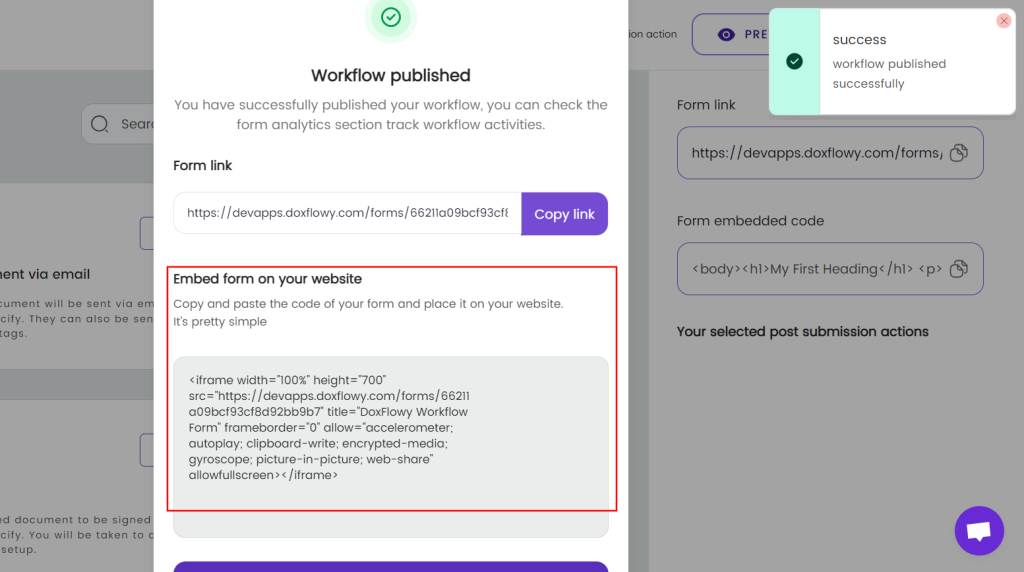
Step 2: Go ahead and copy that embed code. You can then paste it into your website. The process for that is different depending on the type of content management system you’re using. For WordPress, simply choose the ‘custom HTML’ block and paste the code inside

Step 3: If you’ve already published a document and need to find the embed code, simply click on the name of the document from the documents dashboard.
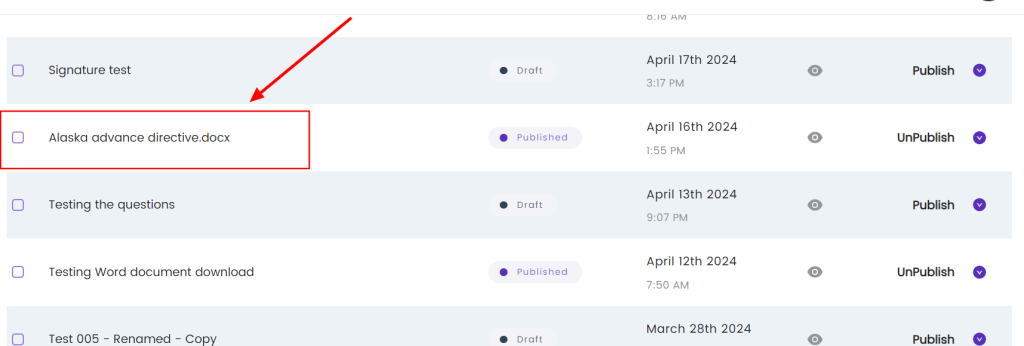
It’ll take you to your document analytics dashboard.
Step 4: From the document analytics dashboard, click on the purple share button. A modal will appear.In it, you’ll see the options to share the workflow using a link or to copy the embed code. In this case, you’ll want to copy the embed code.
That’s it. Once you have your embed code you can paste it wherever you want on your website.